Whether you are working on internal documentation, confidential client projects, or early-stage designs, Cadasio gives you full control over who can view your content.
This guide explains the different privacy options available in Cadasio and how they can be used individually or combined for added security.
Privacy controls in Cadasio
Nothing created in Cadasio is shared publicly unless you explicitly publish it online. If you are only using Cadasio to generate 2D outputs such as images or PDFs, no additional privacy settings are required.
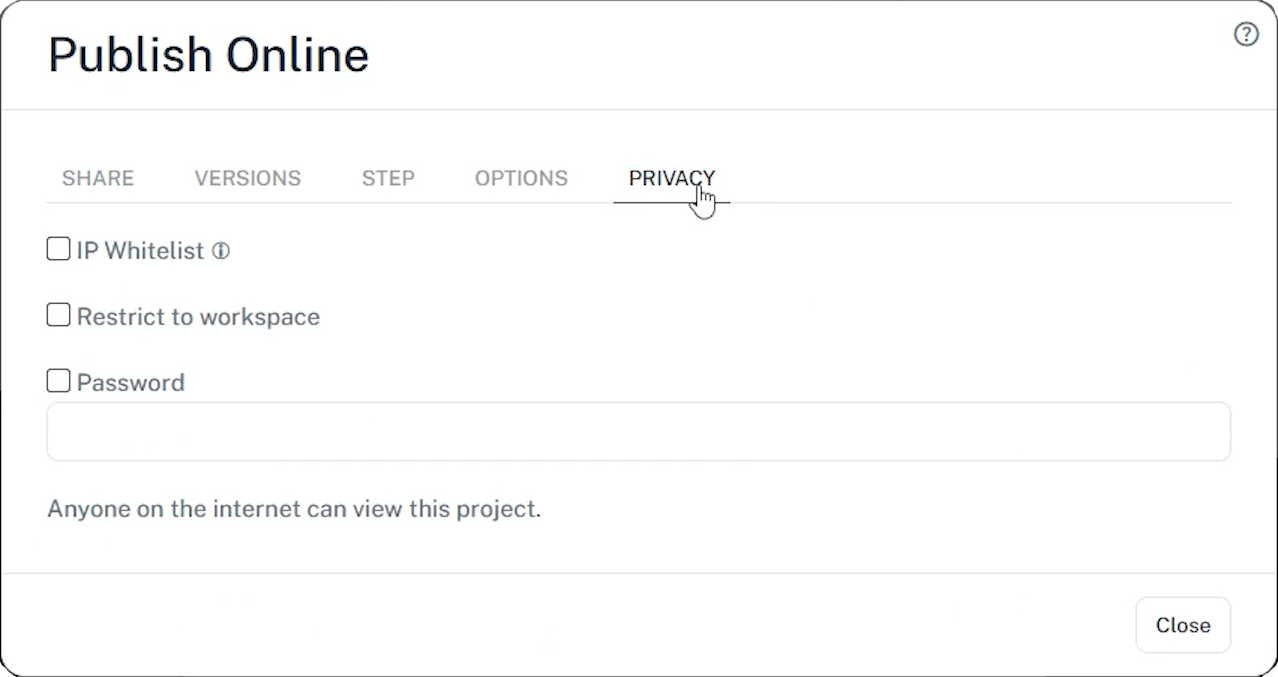
When you do publish a project online, all privacy controls are managed from the Privacy tab. These options can be enabled per project and combined to match your specific security requirements.
Password protection
Password protection is the simplest way to restrict access to a published project.
When enabled, anyone attempting to view the project must enter the correct password before access is granted. This approach is ideal for sharing content with clients, suppliers, or partners while keeping control over who can view the presentation.
Passwords can be changed or removed at any time, giving you flexibility as project requirements evolve.
Workspace-only access
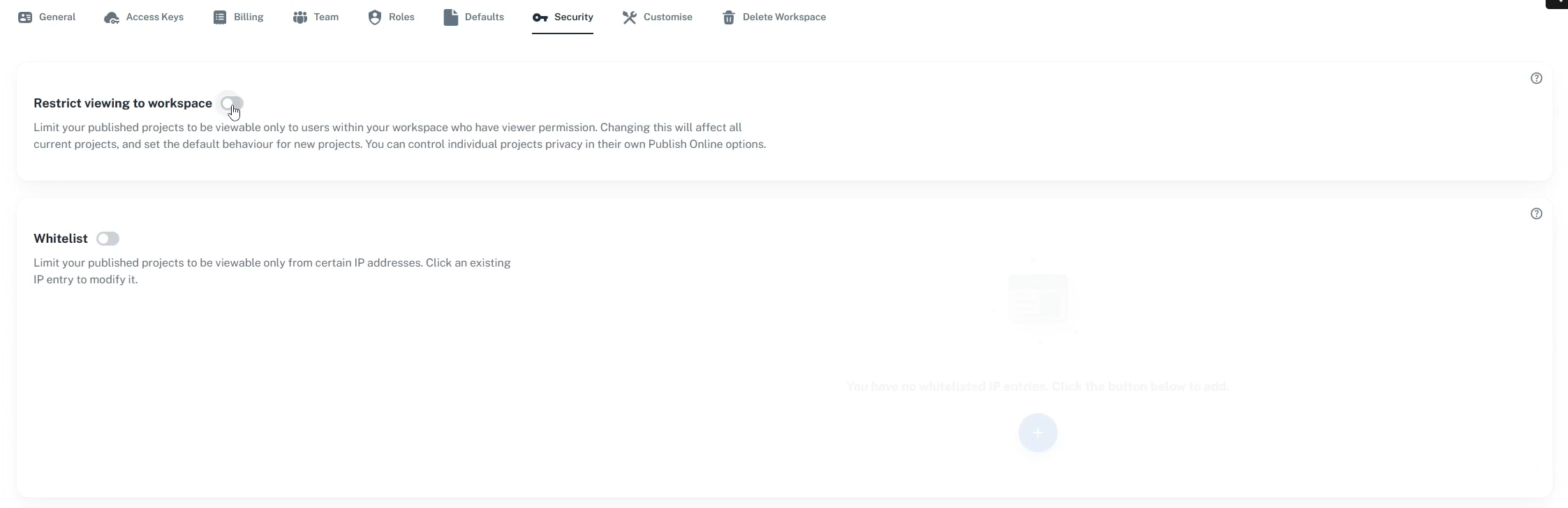
Cadasio also allows you to restrict access so that only users within your workspace can view a project.
With a Cadasio Premium subscription, you can add viewer-only team members from the dashboard. This is particularly useful for colleagues on the shop floor or assembly line who need access to instructions but do not require design permissions.
When a viewer logs into the Cadasio dashboard, they will see a list of all published projects they are allowed to view.
Workspace-only access can be applied in two ways:
- Per project, by enabling the setting in the project’s Privacy tab.
- Globally, by navigating to Workspace → Security and enabling Restrict to Workspace. This applies the restriction to all existing projects and sets it as the default for new ones.
This option is ideal for internal reviews, training materials, and collaborative work that should never be accessible outside your organisation.
IP address restrictions
For an additional layer of security, Cadasio supports IP address restrictions.
In the Security area of the dashboard, you can enable an IP whitelist and define specific IP addresses or ranges. Back in the Designer, enabling this option ensures that access is limited to approved locations only.
Even if a project link or password is shared externally, only users connecting from the authorised IP addresses will be able to view the content.
Combining privacy options for layered security
Cadasio’s privacy controls are not mutually exclusive. You can combine password protection, workspace-only access, and IP restrictions to create layered security that matches your exact requirements.
This flexibility allows you to confidently share content internally or externally, knowing that access is always under your control.
Full control over who sees your work
Whether you are creating internal documentation, collaborating with your team, or sharing interactive presentations with customers, Cadasio gives you the tools to decide exactly who can see your projects.
By using the available privacy options effectively, you can keep sensitive content protected while still benefiting from everything Cadasio has to offer.